Desktop Customization
This guide focuses on improving your Mint desktop aesthetics with themes, Conky system widgets, and other UI customizations.
🖼️ Current Theme Preview
Screenshot
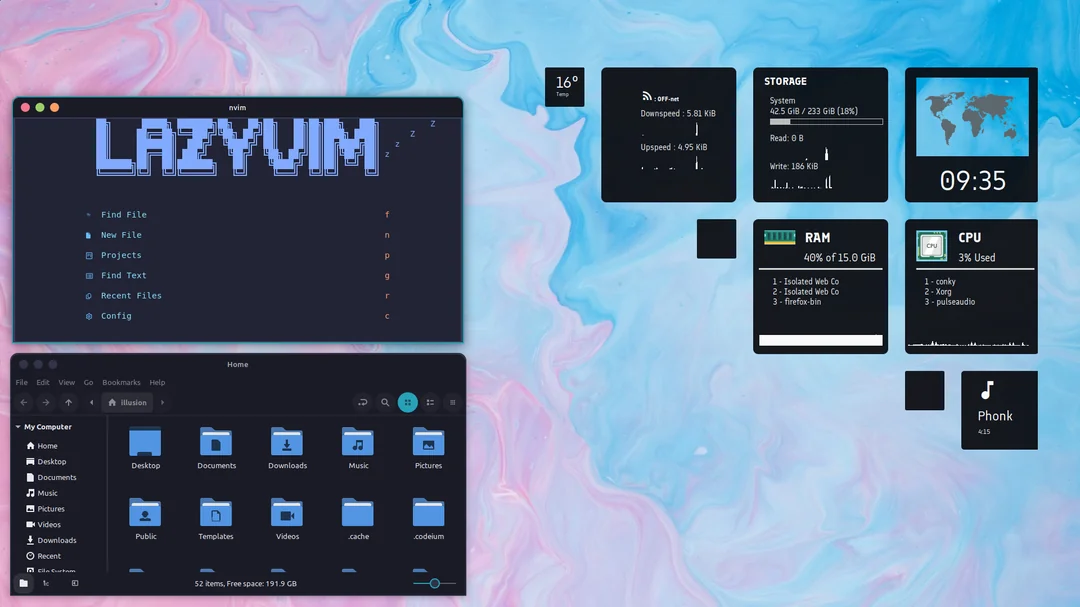
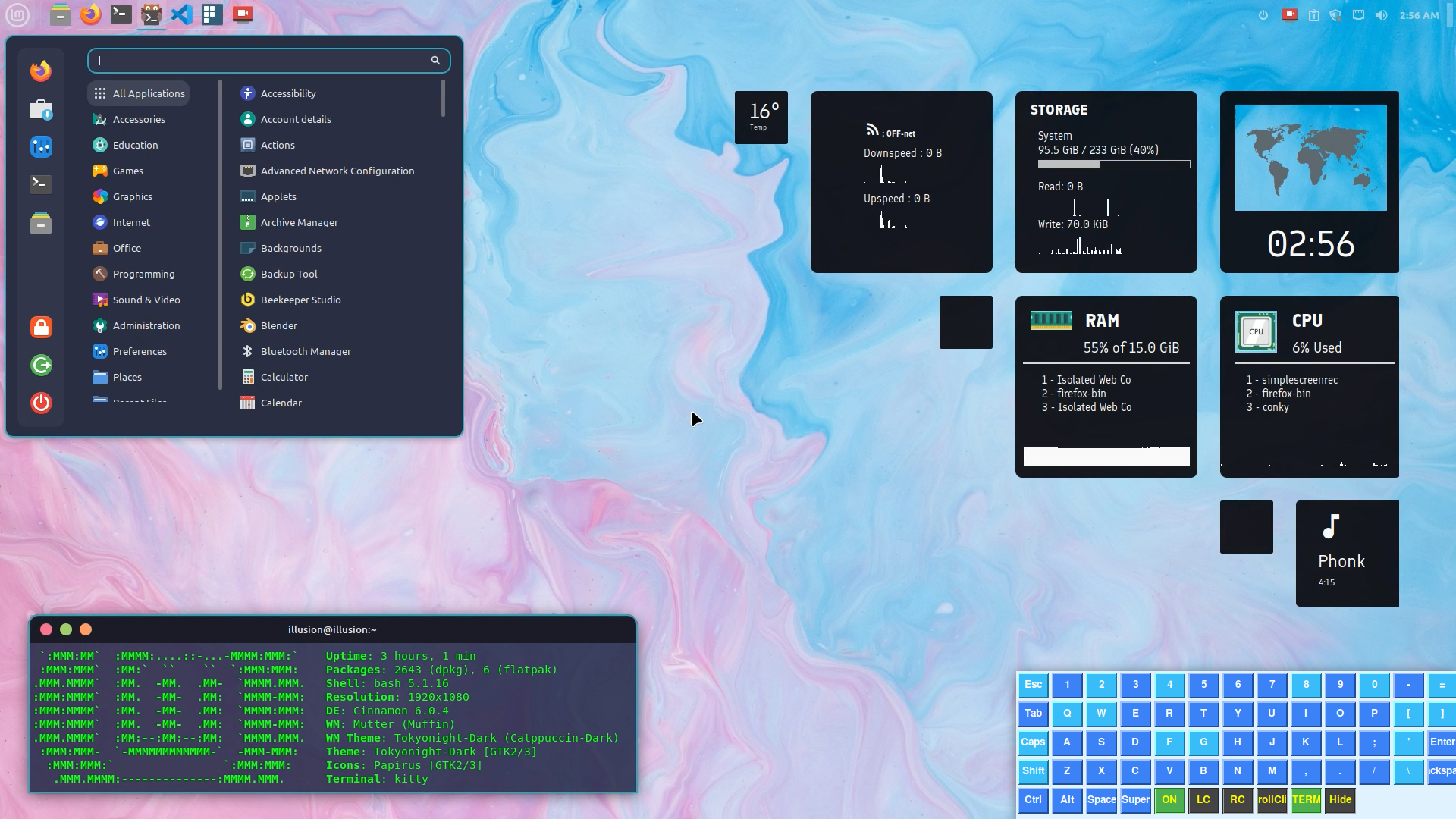
Cinnamon Theme Settings
# Theme Configuration (Prathamesh Jakkula)
Mouse Pointer: Bibata-Modern-Classic
Applications: Tokyonight-Dark
Icons: Papirus
Desktop: Tokyonight-Dark
(You can copy this configuration into your “Themes” settings in Cinnamon to replicate the same look.)
🪞 Conky Customization (Sirius Theme)
A personalized Conky setup by Prathamesh Jakkula, built on top of the Sirius Theme. It displays live system info such as CPU, RAM, network, and clock widgets.
📦 Source Repository
🔧 Install Conky Manager 2
sudo add-apt-repository ppa:ubuntuhandbook1/conkymanager2
sudo apt update
sudo apt install conky-manager2 -y
🎨 Import and Apply Sirius Theme
- Open Conky Manager 2
- Click Import Theme Pack
- Select the Sirius Theme .zip
- Apply and enable desired widgets
- Customize colors and layout as you prefer
🌈 Cinnamon Theme Customization
Download New Themes
Visit Cinnamon Look to find community-created Mint themes. download Tokyonight-B-MB-dark.tar.xz
Apply a Theme
-
Extract the downloaded file.
-
Move the parent folder (contains
gtk-4.0) into:~/.themes -
Go to:
System Settings → Themes → Advanced Settings -
Apply the theme to Application and Desktop sections.
🧩 Recommended Visual Enhancements
- Enable Dark Mode
- Adjust Panel Opacity under “Themes → Panel”
- Use Conky Auto-Start via Startup Applications for persistent widgets
✅ Tested on Linux Mint (Cinnamon Edition) 🎨 Theme Base: Closebox73’s Sirius 🔧 Customization: Prathamesh Jakkula